How to Export Contacts from WhatsApp Web and Telegram
In today’s digitally centric environment, it’s incredibly important to consolidate your channels of communication in order to be as productive as possible. Two of the most popular choice for both personal and business interactions are WhatsApp and Telegram. Both have tons of features to keep you in touch, but sometimes it is necessary to export your contact lists for purposes such as backup or analysis, or integration of the data into a CRM platform. We have mapped out a step-by-step tutorial for exporting your contacts information from both the Web version of WhatsApp as well as the desktop client you get when downloading Telegram.
Understanding the Limitations of WhatsApp Web
When you click on one of the buttons to export contacts to the web, you need to understand what is technically possible. It is a computer-like web version of your mobile phone, so WhatsApp web does not have that “export contacts” type option (export with one click). Your contacts are automatically connected to the phone number inside the address book on your mobile phone. In other words, just by making a contact export from WhatsApp you’re not extracting the whole list of contacts from the app. Instead, you’re just managing your phone’s contact list — which synced with whatsapp web (if you have one).
The Indirect Method for WhatsApp Contact Export
Since there is no way directly to export contacts into WhatsApp web you have to export the whole address book of your phone. On an Android phone, you can do this by opening your Contacts app, going to Settings, and selecting Export contact as VCF (vCard) file. This can be then emailed to yourself or directly stored on your computer. On an iPhone you can do this via iCloud. com, this will export all contacts in VCF format. The contact file will have all numbers that you used to chat on WhatsApp web.
Utilizing Third-Party Tools for Advanced WhatsApp Export
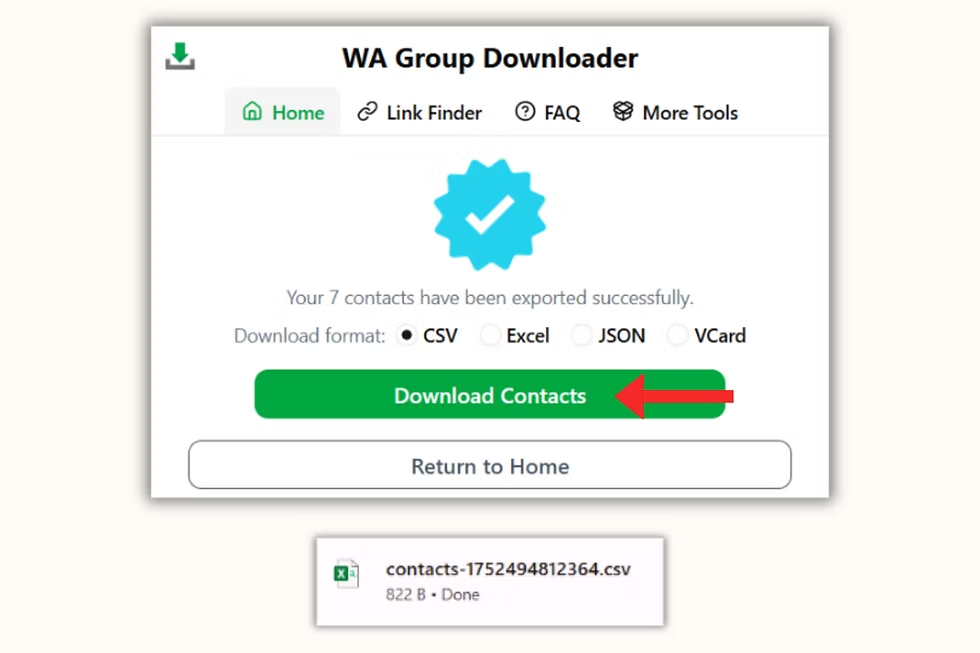
For those who might want more information, such as the names of contacts along with the chat history, there are other third-party apps out there. Usually you’ll need to back up your WhatsApp data from your phone then use their software to parse that data from your computer. This way you can get a much more comprehensive list which is usually in CSV format and can be open in spreadsheet programs. Be sure to use only good software when working with WhatsApp web data.
Initiating the Contact Export Process in Telegram
The process is a little different once you’ve done your Telegram download and installed the desktop client. You have less restriction with respect to how you manage your data, and Telegram has a rather straightforward way of exporting your contacts. As always, please open the Telegram desktop application on your computer. That’s the one you installed from the official Telegram download page.
Step-by-Step Guide to Exporting Telegram Contacts
Once you are inside the Telegram desktop app, you’ll go to the main menu (the hamburger three-lined icon) at the top-left corner. From there, select “Settings. ”In the Settings menu, you’ll go to the “Advanced” section. There is an option called “Export Telegram Data”. Click on it, and you’ll go to a new window where you can configure your export. You can make everything else off, and select only “Contacts”, then choose what format you want your exported data in. I’d say HTML and JSON is common for readability.
Finalizing and Using Your Exported Telegram Data
If you choose any other format to do it click the “Export” button. The app will recompile your contact list in a file and save it to a specific location on your computer. The file will contain the names & usernames of all those people you have kept in your Telegram contacts. From the very beginning this is a native process, a huge advantage when you download Telegram (as with the original option) you don’t need any outside tool for doing this, and it also makes data portable for the user.
Comparing the Export Experiences
The feature to export your contacts)So in closing, the feature of exporting your contacts highlights one major difference in outlook between the two programs. While exporting contacts via WhatsApp web requires an extra step – simply synchronizing your contacts with the address book in your phone (which is a minor restriction for some users) – it is done easily (in a way that users can freely and transparently modify).
Disclaimer
This guide is for educational purposes only. Always follow WhatsApp and Telegram’s terms of service and privacy policies when exporting data. Use third-party tools at your own risk, and ensure you handle all contact information securely. This article is not affiliated with or endorsed by WhatsApp or Telegram